
Start a Chat with Pictory
1
Open a chat
Start a new chat in Muse, on the web at muse.ai or in the Muse app.
2
Ask for what you want
Write your request, then send it. For example:
How much quota do I have left?If Muse answers without using Pictory, name Pictory in your request. For example: “Use Pictory to check how many AI Credits I have.”
3
Read Muse's reply
Muse asks Pictory for the information, then replies in the chat. When you ask for a video,
Muse also asks about any important choices you have not made yet. Answer them in the chat.
Example: Create a Pictory 3 Video
On a Pictory 3 account, say:Create a 60-second video about the advantages of AI in a job search.Muse first offers your Brand Kit 2.0 choices, or no brand kit.
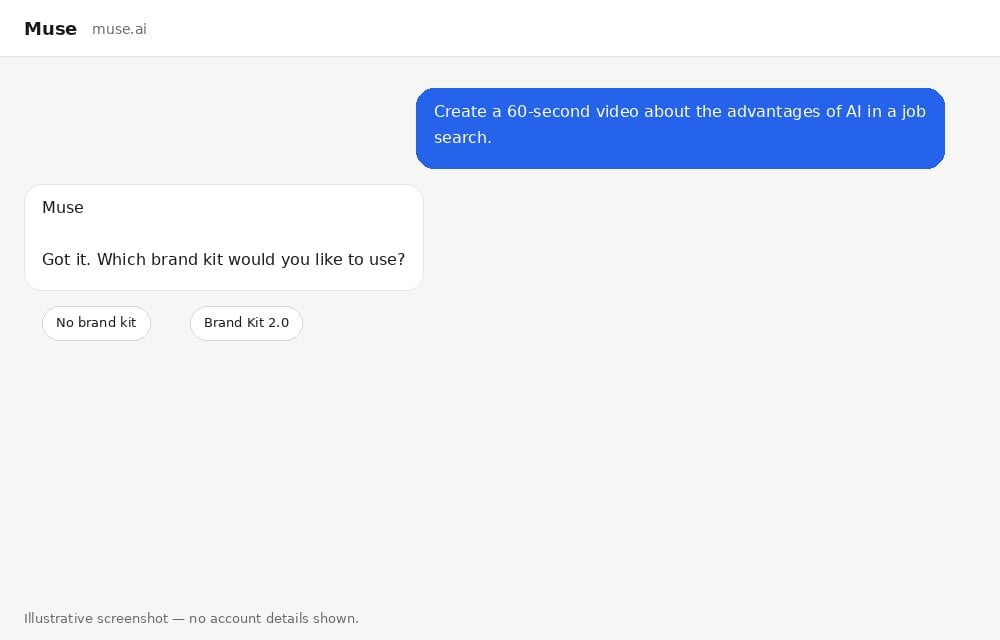
Ask Muse for a video. Muse first asks which brand kit to use.
Preview, Then Render
Muse creates the project and shares a preview. Ask for scene or narration changes in the chat, or open the project link to keep editing in the Motion Studio editor in Pictory 3. When you are happy with the preview, Muse shows the render cost. It waits for your confirmation before it makes the finished video.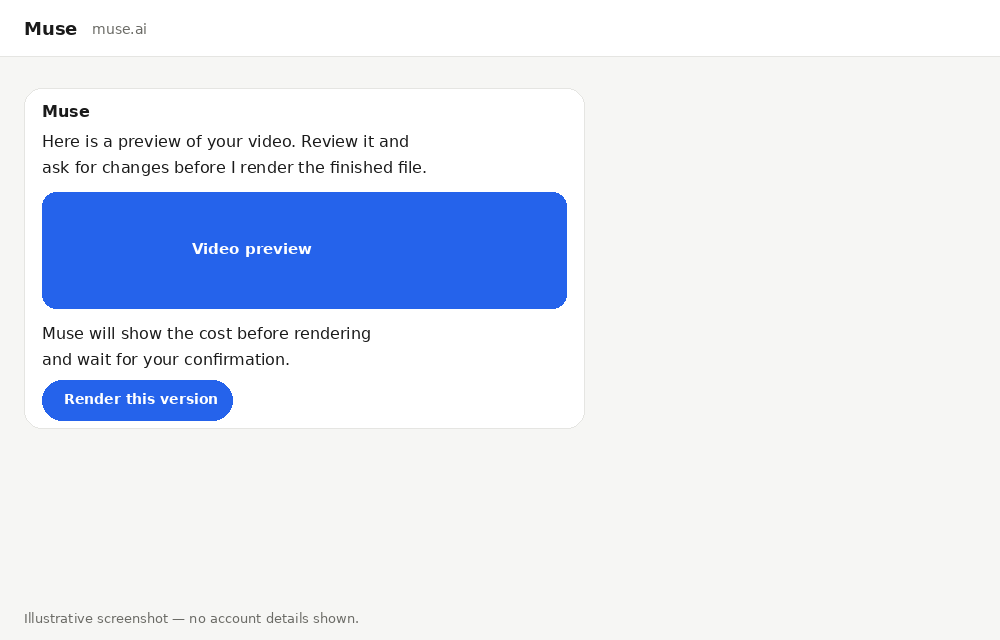
Muse shares a preview, then shows the render cost and waits for you to confirm.
What You Can Ask For
These examples cover common requests. See the complete list of things you can do for all the available features and their limits. That guide uses Claude in its examples; the Pictory features are shared across these connections.Your Account and Options
- “How much quota do I have left?”
- “How many AI Credits do I have?”
- “How many video minutes are left on my plan?” (Pictory 2 accounts)
- “Which voices do you have? Show me English voices.”
- “List my brand kits.”
- “Which subtitle styles can I use?” (Pictory 2 standard videos)
Create a Pictory 3 Video
Start from a template, or create your own design. Ask Muse to show templates for your topic, or give a template name. If you have not said, Muse asks whether you want to start from a template. Browse the cards where supported, or choose from a text list. The assistant uses the chosen template’s scene layouts to arrange your content. You can also continue without a template. See choose a video template. With a Pictory 3 account, you can create videos with animated text, shapes, charts, diagrams, and media. For example:Create a Pictory 3 video about the advantages of AI in a job search. Use animated headlines and simple diagrams. Show me a preview and include the Pictory project link.Muse then helps you settle the details:
- A brand kit. Choose a Brand Kit 2.0 from Pictory 3, or None.
- The story. Agree on the audience, the narration, the narrator, the music, and the number of scenes.
- Media. Choose stock media, AI-generated media, both, or none. Muse asks only if you have not already said what you want.
- Transitions. Choose how one scene moves to the next, or use simple cuts.
Edit an Existing Pictory 3 Project
Share your Pictory project link, even in a new chat, and say what you want to inspect or change. For example:- “List the scenes in this project.”
- “Show me the full narration for scene 3.”
- “Make the headline in scene 2 larger and replace its background image.”
- “Change the transition after scene 2 to a fade.”
- “Add a scene after scene 2 to explain the next step.”
- “Delete scene 4.”
- “Add my logo image as an intro and my video clip as an outro.”
Change or Regenerate Generated Narration
For a Pictory 3 project that already has generated narration, try:- “Replace the narration in scene 2 with: Your next adventure starts here.”
- “Regenerate scene 3’s narration with the same words and voice.”
- “Regenerate the narration for the whole video.”
- “Mute the narration in scene 4.”
- “Unmute the narration in scene 4.”
- “Use a different narrator for the whole project.”
Find and Choose a Voice
Ask for voices in the shared premium library, or for voices already in your Pictory account, including your available custom voices and clones. For example:- “Find Spanish narration voices with a Mexican accent and let me hear samples.”
- “Show me the voices already in my account.”
- “Find a voice named Sarah.”
- “Show me all the voices that match my search.”
Create a Pictory 2 Standard Video
On a Pictory 2 account, new videos use the Pictory 2 standard workflow. For example:- “Make a 60-second explainer about our new expense-tracking feature, professional tone, for YouTube.”
- “Create a vertical Instagram teaser for our coffee brand: warm, cozy, upbeat music.”
- “Turn this blog post into a video: https://example.com/post”
- Who designs the scenes. Pictory designs them, or you design them together with Muse.
- What the video includes. Narration, background music, and saving the video as an editable project are each off unless you ask for them.
- The shape. 16:9 for landscape, 9:16 for vertical, or 1:1 for square.
- The voice. If you want narration, Muse helps you search the premium library or your existing account voices, listen to samples, and choose a narrator.
- Preview or finished video. A preview lets you check the scenes first. Edits to a preview cost nothing.
Turn Your Recording into a Pictory 3 Video
On a Pictory 3 account, you can turn a podcast episode, a talk, or a voice memo into a video. For example:Turn my podcast episode into a video.Here is what happens:
- Muse checks your account, then opens an upload panel in the chat.
- You upload one MP3, WAV, M4A, AAC, or WebM recording. It can be up to 200 MB, and from 5 seconds to 50 minutes long.
- Pictory writes down what you say. Muse then asks only for the choices you have not made: the shape, brand kit, music, transitions, and visuals. Settle the brand kit and the music at this point. You cannot change them through the chat after your project is created.
- Muse tells you roughly how many AI Credits the transcription uses, then creates your project.
- You review a preview, confirm the render cost, and get your video.
Upload the recording through the panel. A link to an audio file does not work for this
feature.
Media, Music, and AI-Generated Visuals
- “Find stock footage of a city skyline at night.”
- “Find calm background music for a 60-second product video.”
- “Generate an AI image of a modern office with natural light.”
- “Generate a clip of waves rolling onto a beach, with the sound of the surf.”
- “Show me video models that can generate dialogue and their costs.”
- “Use this image as the background of the first scene: https://example.com/photo.jpg”
Your Own Images and Videos
Ask Muse to use your own photo, logo, or video clip. For example:Use my product photo as the background of the first scene.An upload panel opens in the chat:
- Drag your file onto the panel, or select Browse and pick it from your device.
- Select Upload.
- Muse receives the file and uses it in your video.
Before Anything Is Created
Muse follows these rules to protect your account and your credits:- It checks your account first. Before a new video, Muse checks which video type your account supports and uses that type.
- It asks for missing choices. Muse asks about anything important you did not mention. Say “you decide” to let it pick sensible defaults.
- It shows the cost before rendering. Before making a finished Pictory 3 video, Muse shows your available credits and the render cost, then waits for you to confirm. It does this even if you asked to render in your first message.
- It does not render a preview without your go-ahead. A preview becomes a finished video only after you approve it.
What You Get Back
For Pictory 3 videos, you receive a preview and a Pictory project link. After you confirm the render cost, you also receive the finished video with watch, share, and download links. The project is saved automatically, so you can open it in Pictory 3 and keep editing. For Pictory 2 standard videos, rendering takes 5–15 minutes. The finished job returns the MP4 file, a watch link, an embed link, the narration audio, and subtitles in both SRT and VTT formats.Troubleshooting
Muse Answers Without Using Pictory
Muse Answers Without Using Pictory
Cause: Muse did not recognize that your request needs Pictory, or Pictory is not
connected.Resolution:
- Name Pictory in your request, for example “Use Pictory to create a video about…”
- Ask Muse whether Pictory is connected.
- If it is not, add it again. See Connect from Muse.
A New Feature Does Not Appear
A New Feature Does Not Appear
Cause: Muse still uses the Pictory features that were available when you connected.
A feature added since then is not visible yet.Resolution:
- Start a new chat and ask again.
- If the feature still does not appear, follow Get New Features to disconnect and reconnect Pictory.
My Pictory 3 Request Is Rejected
My Pictory 3 Request Is Rejected
Cause: Pictory 2 accounts can create only Pictory 2 standard videos through MCP.Resolution: Contact Pictory support to enable Pictory 3 for your account. After
this one-way move, you cannot switch back to Pictory 2. New videos you create
through MCP will use Pictory 3.
You do not need an API subscription to use the connector.
Muse Says I Do Not Have Enough Credits
Muse Says I Do Not Have Enough Credits
Cause: The render or the AI-generated media costs more AI Credits than your account
has left.Resolution:
- Ask Muse how many AI Credits you have.
- Ask for a cheaper model, or use stock media instead of AI-generated media.
- Check your plan and remaining usage at app.pictory.ai.
Every Request Fails
Every Request Fails
Cause: The sign-in has expired, or the connected account does not have access to the
requested feature.Resolution:
- Check your plan and remaining usage at app.pictory.ai.
- Ask Muse to disconnect Pictory, then add it again and sign in. See Connect from Muse.
Next Steps
Pictory MCP Server
Video creation, editing, voices, media, and account options
Pictory 3 videos
What Pictory 3 accounts can create, and how render credits work