
Ways to Connect
Connect from Claude
Add the server as a custom connector in Claude on the web. It follows your account to the desktop and mobile apps.
Connect from Claude Code
One command in the terminal, then sign in. For developers and for a project-wide setup shared with a team.
Connect from ChatGPT
Add the server as a plugin in ChatGPT, then sign in. Every Pictory tool works there too.
Connect from Muse
Ask Muse in a chat to add the server as a custom connector, then sign in.
What You Can Ask For
Start with a topic or a script. Claude checks your account before planning a new video and uses the video type it supports. It does not ask you to choose Pictory 2 standard videos or Pictory 3 videos.Pictory 2 and Pictory 3
Pictory 2 and Pictory 3 are versions of the Pictory video app. Your account determines the only type of new video you can create through the MCP connector:
Claude checks your account automatically. It does not ask you to choose between these
video types. These video features are already enabled on Pictory 3 accounts.
The MCP server rejects Pictory 3 creation requests from Pictory 2 accounts.
Moving to Pictory 3 is a one-way change. If you use Pictory 2 and want Pictory 3,
contact Pictory support to enable Pictory 3 for your account. After your account moves to
Pictory 3, you cannot switch back to Pictory 2. New videos you create through MCP will
use Pictory 3 only.
Example Requests
With a Pictory 3 account, you can say:Create a Pictory 3 explainer about our new product, with animated headlines and diagrams. Show me a preview, then give me the Pictory project link so I can keep editing.Pictory 3 videos are saved as editable projects that open in Pictory 3. See the Pictory 3 guide for the full experience. With a Pictory 2 account, you can say things like:
- “Make a 60-second explainer about our new expense-tracking feature, professional tone, for YouTube.”
- “Create a vertical Instagram teaser for our coffee brand: warm, cozy, upbeat music.”
- “Turn this blog post into a video: https://example.com/post”
- “Show me a preview first.” Claude builds the storyboard and gives you a preview link before anything is rendered.
- “Make the title smaller and swap the clip on scene 2.” After a preview, edits are applied in place; the same preview link shows the change.
- “Which voices do you have?”, “How much quota do I have left?”
Who Designs the Scenes
For a new Standard video on a Pictory 2 account, Claude asks who should design the scenes. This decides what you supply and how much control you keep. The choice applies to the whole video, not to individual scenes. This question is not asked for Pictory 3. See the Pictory 3 guide for the Pictory 3 workflow.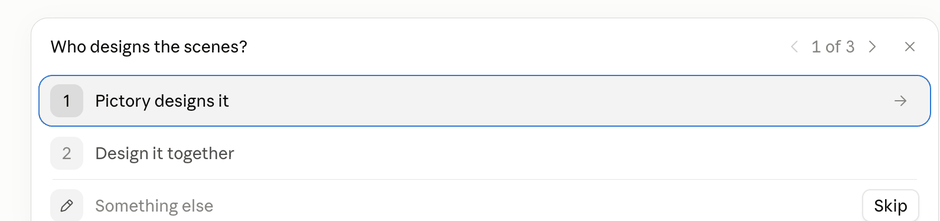
Choose who designs the scenes for your standard video.
Pictory Designs It
Give Claude a topic, a script, an article link, or narration for each scene. Pictory chooses the visuals, text, colors, layout, and pace. You can still choose the narrator, music, video shape, brand kit, and subtitle style. If you start with a topic, Claude asks about the audience, purpose, length, and tone. If you already have a script, Pictory builds the scenes around it. This option works well when you want a first draft without deciding every scene detail. You can ask for a preview before making the finished video.Design It Together
Plan the scenes with Claude and describe how each one should look. You can control:- Narration: what is said in each scene, or no narration where a title or clip tells the story.
- Backgrounds: stock footage or images, your own images and clips (uploaded from the chat or shared as a link), a plain color, or AI-generated media. Ask for a tint, movement on still images, or sound from a clip.
- Text and graphics: titles, subtitles, labels, shapes, charts, and comparisons. Choose their size, color, position, and entry or exit animation.
- Extra media: add stock images or clips beside the text. AI-generated media is used as the scene background in this Standard workflow.
- Timing and transitions: how long a scene stays on screen and how it moves to the next.
- Music: one track throughout or different tracks for parts of the story.
AI-Generated Media
For Standard videos in Design it together, Claude asks whether to use stock or AI-generated media. Stock media does not use AI Credits. AI-generated images and clips do. If you want AI media, Claude helps you choose:- Images, videos, or let AI decide. With let AI decide, Claude picks an image or clip for each scene and tells you which it chose.
- Sound for video clips. Decide whether you want sound from the clip, such as speech or ambience.
- A model. Claude shows suitable models and their costs. If you want both images and video clips, choose a model for each.
- A consistent look. For multiple scenes, decide whether the clips should flow together and whether a person or product should look the same. You can provide a reference image, either as a link or by uploading it from the chat.
Which to Choose
You can ask for a preview in either mode, and in Design it together you can keep editing that
preview until it is right before anything is rendered.
Music
If you want music, Claude asks how it should be chosen. When you design the scenes together:- One track for the whole video. Pictory picks a track that suits the video, or Claude finds one in Pictory’s music library once the story is final and offers it to you.
- A mix chosen scene by scene. Once the scene list is agreed, Claude groups neighboring scenes that share a mood, such as the opening, the problem and the close, searches the music library separately for each group, and offers a different track for each. A track plays on across its group without restarting. If some scenes are left without a track, Claude asks whether they play one track underneath or have no music. Every track in a mix is chosen from the library; there is no automatic pick for a scene.
Pictory 3 Capabilities
With a Pictory 3 account, you can:- Choose a Brand Kit 2.0 from Pictory 3 or None before planning the story.
- Agree on the first scene plan, narration, narrator, and music before creating the project.
- Choose stock media, AI-generated images or clips, both, or no media. Claude asks only if you have not already given a preference. A video about AI does not mean you want AI-generated media.
- Use your own images and clips. Upload them from the chat and they are saved in your Pictory 3 media library. See upload your own images and videos.
- Start from your own audio recording. It becomes the voice-over, and the scenes follow what you say. See create videos from audio recordings.
- Choose scene transitions or use simple cuts.
- Create animated scenes around the agreed narration, then refine their design.
- Reopen a Pictory 3 project by sharing its project link, including a project started in the app.
- Read and revise existing scenes, add or remove scenes, and add your own intro or outro.
- Edit or regenerate existing AI narration, change the narrator for the whole project, or mute narration in selected scenes. These updates can use additional narration credits or allowances.
- Review a shareable preview and open the saved project in the Motion Studio editor in Pictory 3.
- See your credit balance and render cost, then confirm before Claude makes the finished video.
- Receive watch, share, and download links.
Pictory 3 Render Credits
Rendering means making the finished video file. On plans that charge render credits, Pictory 3 videos made through MCP cost 200 AI Credits per video minute for the project’s first successful render. The video length is rounded to two decimal places in minutes before the cost is calculated. For example, a 60-second video costs 200 credits and a 7-second video costs 24 credits. Later renders of the same assistant-created project use no additional Pictory 3 render credits. Eligible Enterprise and API Self-Service plans include Pictory 3 rendering at no AI-credit cost. Claude checks your plan and shows the cost, including zero, before asking for confirmation. Claude waits for that confirmation even if your first message asked it to render. After changes, it checks the cost and asks again. If credits are insufficient, it explains what is needed instead of starting the render. Voice-over and AI-generated media have their own usage limits or costs. See credits and rendering.Everything You Can Do
Ask in your own words. You do not need commands or technical names. Claude, ChatGPT, and Muse use the same Pictory capabilities. Your account determines which video workflow is available. Shared options, such as finding a voice or checking your balance, work with both.Account, Progress, and Costs
Create and Edit Pictory 3 Videos
These capabilities work with eligible Pictory 3 projects, including projects started in the Pictory app. Share the project link when returning to a video in a new conversation. They do not convert Pictory 2 standard projects into Pictory 3 projects.
See choose a video template for the picker, example requests, and
how scene layouts guide your video.
After adding or removing scenes, the assistant applies any required timing and audio updates
before previewing. Narration generation is a separate step and may use credits. Projects that
use an uploaded narration recording support visual revisions, but not these scene additions,
deletions, or replacement of the recording. See Pictory 3 editing limits.
Turn a Recording into a Pictory 3 Video
The assistant uses that scene plan to create your Pictory 3 project. See
create videos from audio recordings.
Create and Refine Pictory 2 Standard Videos
Find Voices, Music, and Media
For AI media, the assistant first checks whether you want images, videos, or both. It asks
only for the models relevant to that choice. You can mix clips with their own dialogue and
scenes with AI narration; the assistant agrees on where each kind of audio belongs. If every
scene uses a clip’s own speech, an extra narrator is optional. AI media for Pictory 2 standard
videos is prepared as part of that workflow’s preview or video creation.
Upload Your Own Files
Where an upload panel is unavailable, you can provide a public image or video file link.
Audio-to-video requires the recording upload panel; a public audio link cannot replace that step. See uploading media and
uploading a recording.